> ## Documentation Index
> Fetch the complete documentation index at: https://auth0-actions-modules-ga.mintlify.site/llms.txt
> Use this file to discover all available pages before exploring further.
> Build your first Auth0 Action Module in the Auth0 Dashboard by creating the module, adding secrets and NPM dependencies, publishing a version, and using it to send logs to an external service.
# Write Your First Action Module
export const AuthCodeGroup = ({children, dropdown}) => {
const [processedChildren, setProcessedChildren] = useState(children);
useEffect(() => {
let unsubscribe = null;
function init() {
unsubscribe = window.autorun(() => {
const processChildren = node => {
if (typeof node === "string") {
let processedNode = node;
for (const [key, value] of window.rootStore.variableStore.values.entries()) {
const escapedKey = key.replaceAll(/[.*+?^${}()|[\]\\]/g, (String.raw)`\$&`);
processedNode = processedNode.replaceAll(new RegExp(escapedKey, "g"), value);
}
return processedNode;
} else if (Array.isArray(node)) {
return node.map(processChildren);
} else if (node && node.props && node.props.children) {
return {
...node,
props: {
...node.props,
children: processChildren(node.props.children)
}
};
}
return node;
};
setProcessedChildren(processChildren(children));
});
}
if (window.rootStore) {
init();
} else {
window.addEventListener("adu:storeReady", init);
}
return () => {
window.removeEventListener("adu:storeReady", init);
unsubscribe?.();
};
}, [children]);
return {processedChildren};
};
## Get Started
Use the quickstart to write an Action Module and use it from an Action to send logs to an external service.
To use an Action Module from a specific Action, you first need to create the Action Module and then add/use it in an Action.
1. Navigate to [Auth0 Dashboard > Actions > Library](https://manage.auth0.com/#/actions/library) then select **Modules**.
2. Select **Create Module**.
3. Enter a **Name**.
4. Select **Create**.
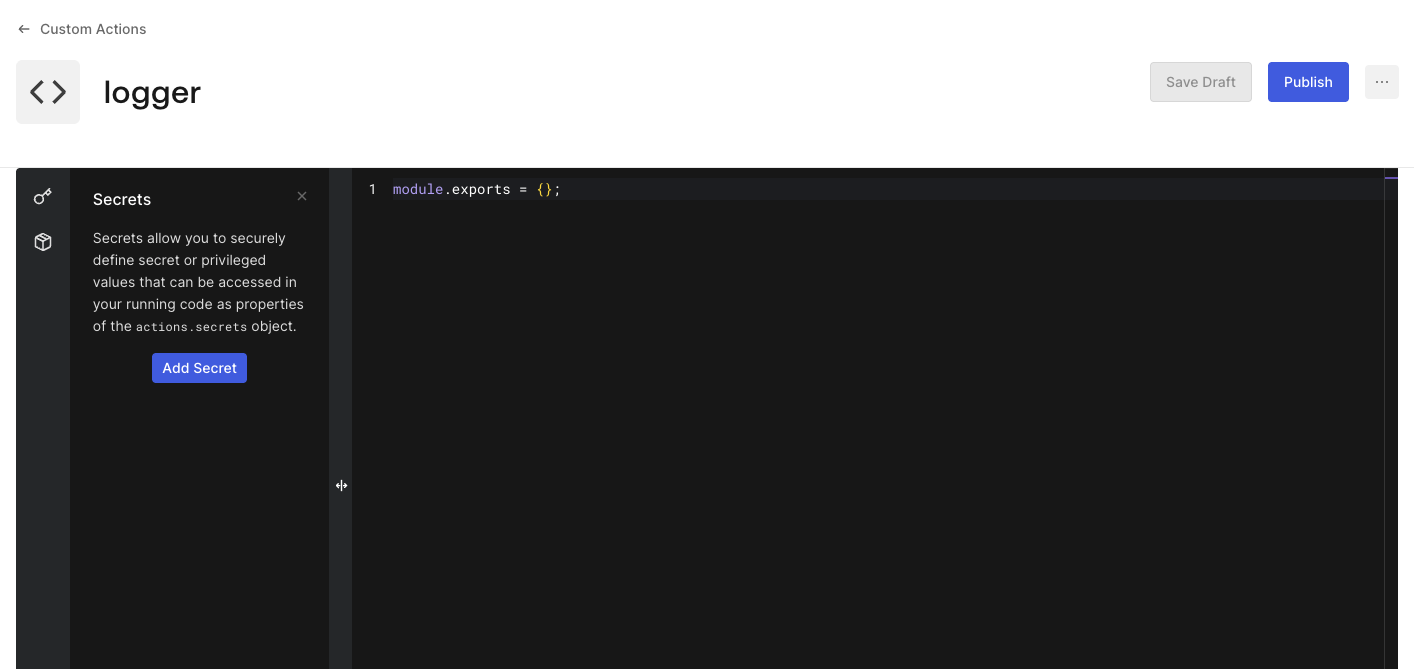
Auth0 displays the Code Editor
1. [Get a Management API Access Token](/docs/secure/tokens/access-tokens/management-api-access-tokens) with the `create:actions` scope.
2. Call [Create an Actions Module](https://auth0.com/docs/api/management/v2/actions/post-action-module):
```shell lines theme={null}
curl -L 'https://{yourDomain}/api/v2/actions/modules' \
-H 'Content-Type: application/json' \
-H 'Authorization: Bearer {yourMgmtApiAccessToken}' \
-d '{
"name": "logger",
"code": "module.exports = {};",
"api_version": "1",
"publish": false
}'
```
Auth0 returns the new Action Module, including its `id`, which you use to reference the module in later steps.
Actions Modules are not natively exposed by the `auth0-cli` command set, so use [`auth0 api`](https://auth0.github.io/auth0-cli/auth0_api.html) to call the Management API directly. Some calls require additional scopes — run `auth0 login --scopes create:actions,read:actions,update:actions` first if needed.
Call [Create an Actions Module](https://auth0.com/docs/api/management/v2/actions/post-action-module) with `auth0 api`:
```shell lines theme={null}
auth0 api post actions/modules --data '{
"name": "logger",
"code": "module.exports = {};",
"api_version": "1",
"publish": false
}'
```
Auth0 returns the new Action Module, including its `id`, which you use to reference the module in later steps.
Read the [`auth0_action_module`](https://registry.terraform.io/providers/auth0/auth0/latest/docs/resources/action_module) resource documentation to learn more.
1. Add the following resource to a `.tf` file, referencing the module's code from a file:
```terraform lines theme={null}
resource "auth0_action_module" "logger" {
name = "logger"
code = file("${path.module}/action-modules/logger/code.js")
}
```
2. Create the module's code file at `action-modules/logger/code.js`:
```javascript lines theme={null}
module.exports = {};
```
3. Run `terraform apply`.
You will expand the code file and this resource with secrets in the following steps.
Actions Modules is an Early Access feature. Run the Deploy CLI with the `--experimental_ea` flag to manage it.
1. Create the module's code file at `action-modules/logger/code.js`:
```javascript lines theme={null}
module.exports = {};
```
2. Add an `actionModules` entry to `tenant.yaml`:
```yaml lines theme={null}
actionModules:
- name: logger
code: ./action-modules/logger/code.js
```
3. Deploy the configuration:
```shell lines theme={null}
a0deploy import -c=config.json --input_file=tenant.yaml --experimental_ea
```
1. Create the module's configuration file at `action-modules/logger.json`:
```json lines theme={null}
{
"name": "logger",
"code": "./action-modules/logger/code.js"
}
```
2. Create the module's code file at `action-modules/logger/code.js`:
```javascript lines theme={null}
module.exports = {};
```
3. Deploy the configuration:
```shell lines theme={null}
a0deploy import -c=config.json --input_file=. --experimental_ea
```
Each Action Module can contain secret key/values pairs. Use these to hold sensitive information, such as API Keys, certificates, and values that may change across environments.
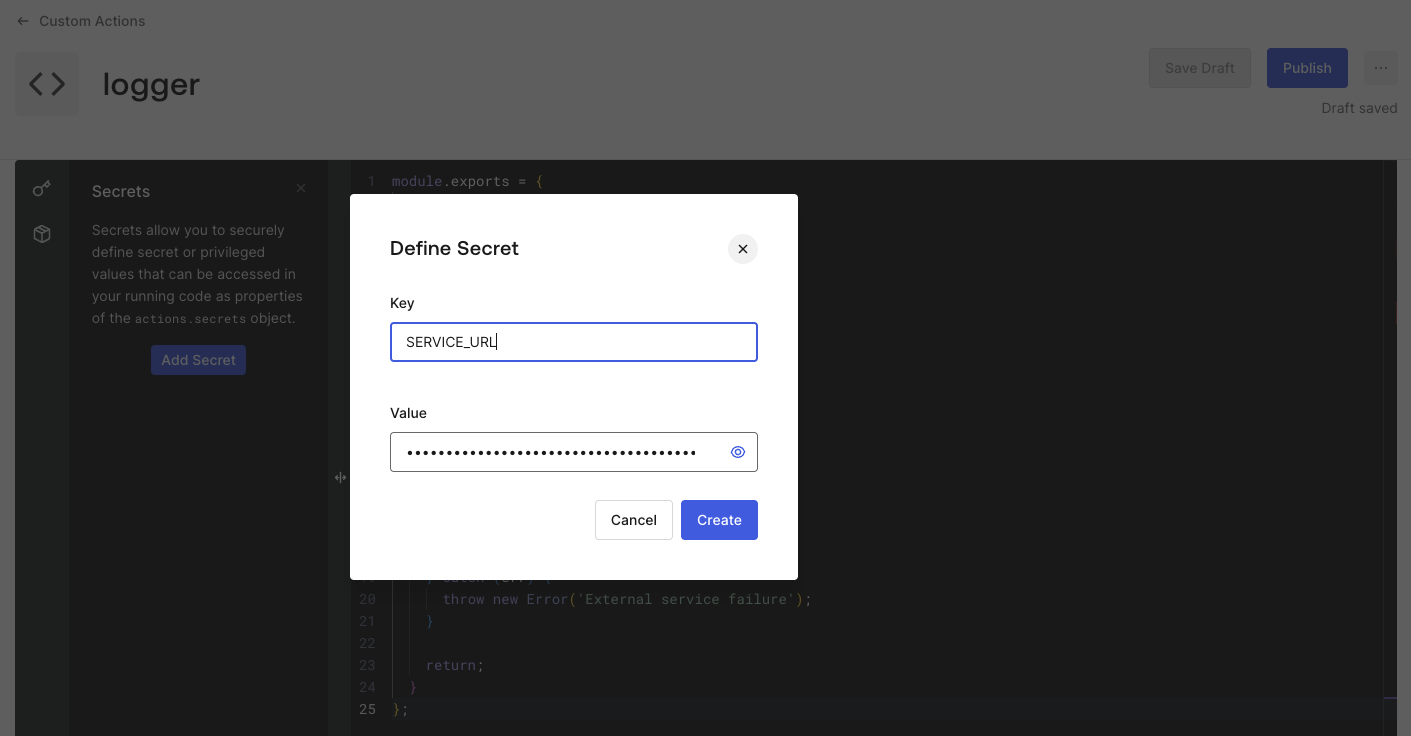
Let’s store the external service URL as a Secret.
1. Select the **** icon from the code editor's left sidebar.
2. Select **Add Secret**.
3. Enter the **Name** as `SERVICE_URL`.
4. Enter the external service URL at the **Value** field.
5. Select **Create**.
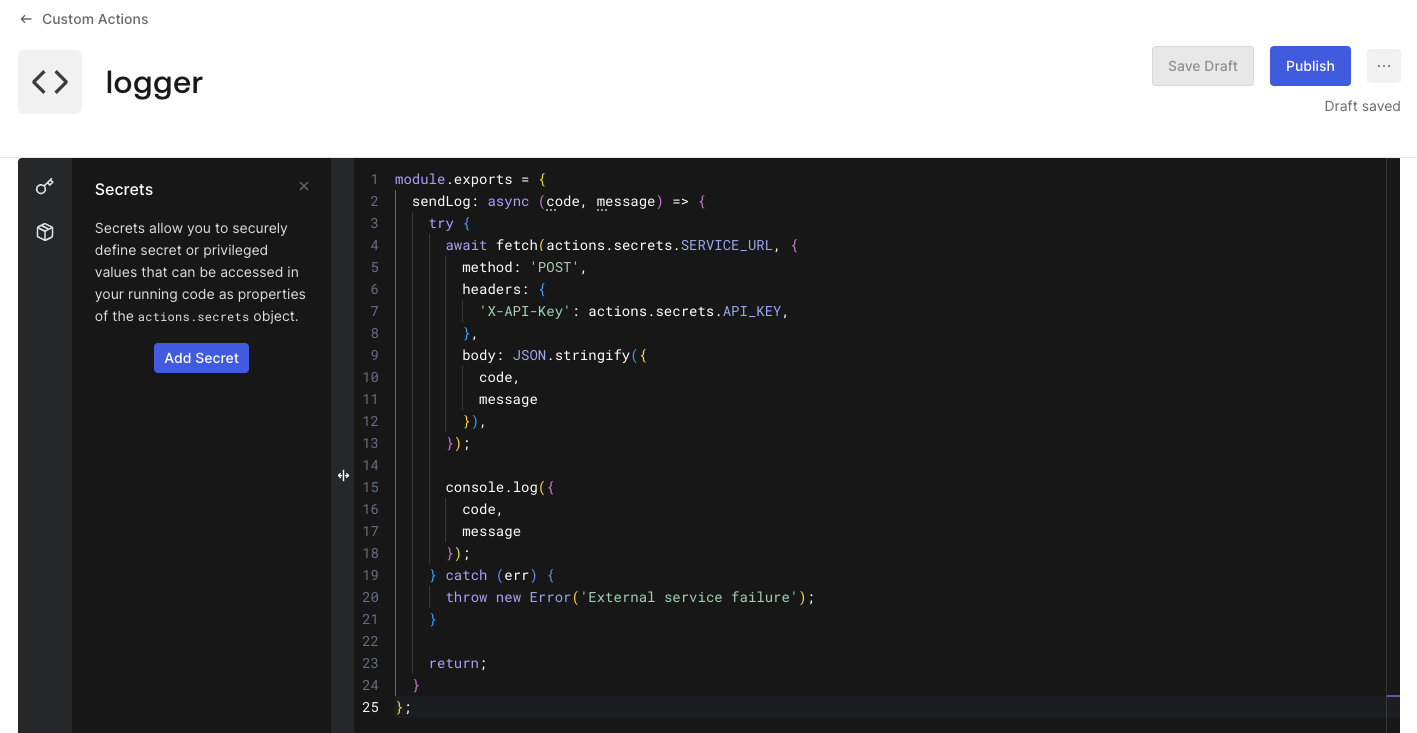
Auth0 adds the Secret to the Action Module Secret list.
Let’s store the external service URL as a Secret. Call [Update an Actions Module](https://auth0.com/docs/api/management/v2/actions/patch-action-module) with the `update:actions` scope:
```shell lines theme={null}
curl -L -X PATCH 'https://{yourDomain}/api/v2/actions/modules/{moduleId}' \
-H 'Content-Type: application/json' \
-H 'Authorization: Bearer {yourMgmtApiAccessToken}' \
-d '{
"secrets": [
{ "name": "SERVICE_URL", "value": "https://example.com/logs" }
]
}'
```
Each `PATCH` call replaces the entire `secrets` array on the module's draft, so include every Secret the module needs, not just the one you are adding.
Let’s store the external service URL as a Secret. Call [Update an Actions Module](https://auth0.com/docs/api/management/v2/actions/patch-action-module) with `auth0 api`:
```shell lines theme={null}
auth0 api patch actions/modules/{moduleId} --data '{
"secrets": [
{ "name": "SERVICE_URL", "value": "https://example.com/logs" }
]
}'
```
Each call replaces the entire `secrets` array on the module's draft, so include every Secret the module needs, not just the one you are adding.
Let’s store the external service URL as a Secret using a `secrets` block:
```terraform lines theme={null}
resource "auth0_action_module" "logger" {
name = "logger"
code = file("${path.module}/action-modules/logger/code.js")
secrets {
name = "SERVICE_URL"
value = "https://example.com/logs"
}
}
```
Partial management of `secrets` is not supported — each `terraform apply` sends the complete list of secrets defined on the resource.
Let’s store the external service URL as a Secret.
Add a `secrets` array to the module's entry in `tenant.yaml`:
```yaml lines highlight={3-5} theme={null}
actionModules:
- name: logger
secrets:
- name: SERVICE_URL
value: ##SERVICE_URL##
code: ./action-modules/logger/code.js
```
Add a `secrets` array to `action-modules/logger.json`:
```json lines highlight={3-5} theme={null}
{
"name": "logger",
"secrets": [
{ "name": "SERVICE_URL", "value": "##SERVICE_URL##" }
],
"code": "./action-modules/logger/code.js"
}
```
The `##SERVICE_URL##` placeholder is resolved through [keyword replacement](https://github.com/auth0/auth0-deploy-cli/blob/master/docs/keyword-replacement.md) at deploy time, so the actual value never lives in your configuration file.
**Extra Step:** Repeat the steps to store an `API_KEY` as a Secret that you will send in the headers to the external service in each request.
Once you create a Secret, Auth0 never reveals its value. Auth0 encrypts all Secrets and stores them securely.
Each **Action Module Secret** is independent from other **Actions Modules** and **Actions Secrets**.
Use **Secrets** at the Action Module by typing `actions.secrets.[secret_key]`.
Now, add the following code to your Action Module.
Add the following code to your Action Module:
```javascript lines theme={null}
module.exports = {
sendLog: async (code, message) => {
try {
await fetch(actions.secrets.SERVICE_URL, {
method: 'POST',
headers: {
'X-API-Key': actions.secrets.API_KEY,
},
body: JSON.stringify({
code,
message
}),
});
console.log({
code,
message
});
} catch (err) {
throw new Error('External service failure');
}
return;
}
};
```
Call [Update an Actions Module](https://auth0.com/docs/api/management/v2/actions/patch-action-module) with the following request:
```shell lines theme={null}
curl -L -X PATCH 'https://{yourDomain}/api/v2/actions/modules/{moduleId}' \
-H 'Content-Type: application/json' \
-H 'Authorization: Bearer {yourMgmtApiAccessToken}' \
-d @code-update.json
```
Where `code-update.json` contains the module's `code` as a JSON-escaped string:
```json code-update.json lines theme={null}
{
"code": "module.exports = {\n sendLog: async (code, message) => {\n try {\n await fetch(actions.secrets.SERVICE_URL, {\n method: 'POST',\n headers: {\n 'X-API-Key': actions.secrets.API_KEY,\n },\n body: JSON.stringify({ code, message }),\n });\n\n console.log({ code, message });\n } catch (err) {\n throw new Error('External service failure');\n }\n\n return;\n }\n};"
}
```
Save the module's code to `code-update.json`:
```json code-update.json lines theme={null}
{
"code": "module.exports = {\n sendLog: async (code, message) => {\n try {\n await fetch(actions.secrets.SERVICE_URL, {\n method: 'POST',\n headers: {\n 'X-API-Key': actions.secrets.API_KEY,\n },\n body: JSON.stringify({ code, message }),\n });\n\n console.log({ code, message });\n } catch (err) {\n throw new Error('External service failure');\n }\n\n return;\n }\n};"
}
```
Then pipe it into [Update an Actions Module](https://auth0.com/docs/api/management/v2/actions/patch-action-module) via `auth0 api`:
```shell lines theme={null}
cat code-update.json | auth0 api patch actions/modules/{moduleId}
```
1. Update the module's code file at `action-modules/logger/code.js`:
```javascript lines theme={null}
module.exports = {
sendLog: async (code, message) => {
try {
await fetch(actions.secrets.SERVICE_URL, {
method: 'POST',
headers: {
'X-API-Key': actions.secrets.API_KEY,
},
body: JSON.stringify({
code,
message
}),
});
console.log({
code,
message
});
} catch (err) {
throw new Error('External service failure');
}
return;
}
};
```
2. The `auth0_action_module` resource's `code` attribute already references this file, so run `terraform apply` to apply the change.
Update `action-modules/logger/code.js` with the module's logic:
```javascript lines theme={null}
module.exports = {
sendLog: async (code, message) => {
try {
await fetch(actions.secrets.SERVICE_URL, {
method: 'POST',
headers: {
'X-API-Key': actions.secrets.API_KEY,
},
body: JSON.stringify({
code,
message
}),
});
console.log({
code,
message
});
} catch (err) {
throw new Error('External service failure');
}
return;
}
};
```
Be aware of:
* [Coding Guidelines](/docs/customize/actions/action-coding-guidelines#actions-modules)
* [Limitations](/docs/customize/actions/limitations#actions-modules)
You can save a draft of your Action Module.
1. Select **Save Draft**.
There is no separate "save" call. Every [Update an Actions Module](https://auth0.com/docs/api/management/v2/actions/patch-action-module) request in the previous steps already persisted your changes to the module's draft. You can confirm this with [Get an Actions Module](https://auth0.com/docs/api/management/v2/actions/get-action-module):
```shell lines theme={null}
curl -L 'https://{yourDomain}/api/v2/actions/modules/{moduleId}' \
-H 'Authorization: Bearer {yourMgmtApiAccessToken}'
```
The response's `all_changes_published` field is `false`, confirming the draft has unpublished changes.
There is no separate "save" call. Every `auth0 api patch actions/modules/{moduleId}` request in the previous steps already persisted your changes to the module's draft. You can confirm this with [Get an Actions Module](https://auth0.com/docs/api/management/v2/actions/get-action-module):
```shell lines theme={null}
auth0 api get actions/modules/{moduleId}
```
The response's `all_changes_published` field is `false`, confirming the draft has unpublished changes.
There is no separate "save" step. The `terraform apply` you ran in the previous steps already updated the module's draft. The draft has no effect on Actions already using a published version of the module.
There is no separate "save" step. Leave `all_changes_published` unset (or `false`) on the module's entry and run `a0deploy import` — the Deploy CLI updates the module's draft without publishing a new version.
Leave `all_changes_published` unset (or `false`) on the module's entry in `tenant.yaml`.
Leave `all_changes_published` unset (or `false`) in `action-modules/logger.json`.
This saves your Action Module without publishing a new version, so it does not affect Actions using it.
Once you are satisfied with the Action Module code, it’s time to **Publish** it.
1. Select **Publish**.
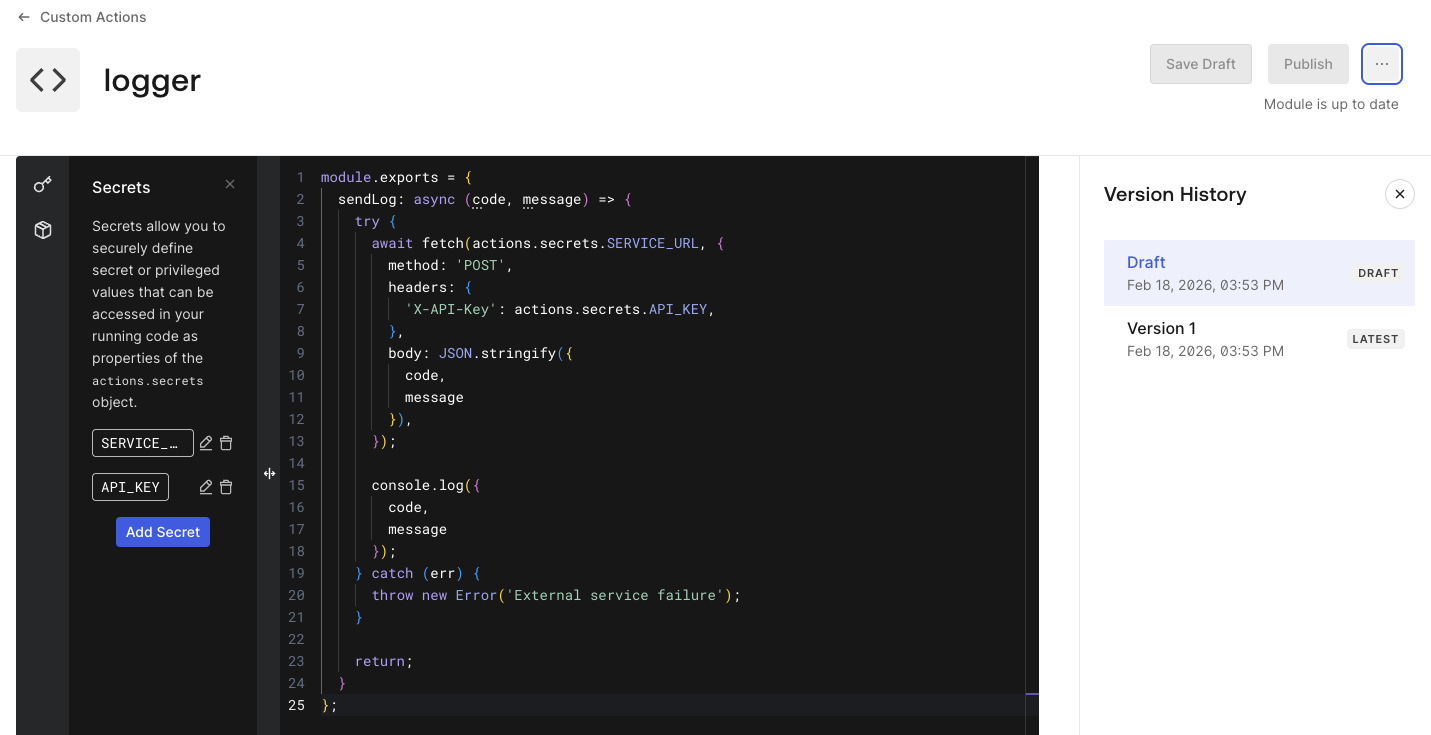
Publishing an Action Module takes a snapshot of it at that time and records it as an **Action Module Version**.
2. Select **View Version History**.
Auth0 displays the list of Action Module Versions including the draft.
Call [Create an Actions Module Version](https://auth0.com/docs/api/management/v2/actions/post-action-module-version), which takes a snapshot of the current draft and publishes it:
```shell lines theme={null}
curl -L -X POST 'https://{yourDomain}/api/v2/actions/modules/{moduleId}/versions' \
-H 'Authorization: Bearer {yourMgmtApiAccessToken}'
```
Auth0 returns the new **Action Module Version**, including its `id` and `version_number`. You'll reference this `id` as the `module_version_id` when adding the module to an Action.
Call [Create an Actions Module Version](https://auth0.com/docs/api/management/v2/actions/post-action-module-version) with `auth0 api`, which takes a snapshot of the current draft and publishes it:
```shell lines theme={null}
auth0 api post actions/modules/{moduleId}/versions
```
Auth0 returns the new **Action Module Version**, including its `id` and `version_number`. You'll reference this `id` as the `module_version_id` when adding the module to an Action.
Set `publish` to `true` on the resource, then run `terraform apply`:
```terraform lines highlight={4} theme={null}
resource "auth0_action_module" "logger" {
name = "logger"
code = file("${path.module}/action-modules/logger/code.js")
publish = true
secrets {
name = "SERVICE_URL"
value = "https://example.com/logs"
}
}
```
Publishing creates a new **Action Module Version** from the current draft. Terraform exposes the published version's ID as the `version_id` computed attribute, which you reference from `auth0_action` resources as `module_version_id`.
Set `all_changes_published` to `true` on the module's entry, then redeploy.
Set `all_changes_published` to `true` on the module's entry in `tenant.yaml`:
```yaml lines highlight={3} theme={null}
actionModules:
- name: logger
all_changes_published: true
secrets:
- name: SERVICE_URL
value: ##SERVICE_URL##
code: ./action-modules/logger/code.js
```
```shell lines theme={null}
a0deploy import -c=config.json --input_file=tenant.yaml --experimental_ea
```
Set `all_changes_published` to `true` in `action-modules/logger.json`:
```json lines highlight={2} theme={null}
{
"all_changes_published": true,
"name": "logger",
"secrets": [
{ "name": "SERVICE_URL", "value": "##SERVICE_URL##" }
],
"code": "./action-modules/logger/code.js"
}
```
```shell lines theme={null}
a0deploy import -c=config.json --input_file=. --experimental_ea
```
The Deploy CLI publishes a new **Action Module Version** from the current draft after applying your changes.
You are now able to start using the Action Module in an Action.
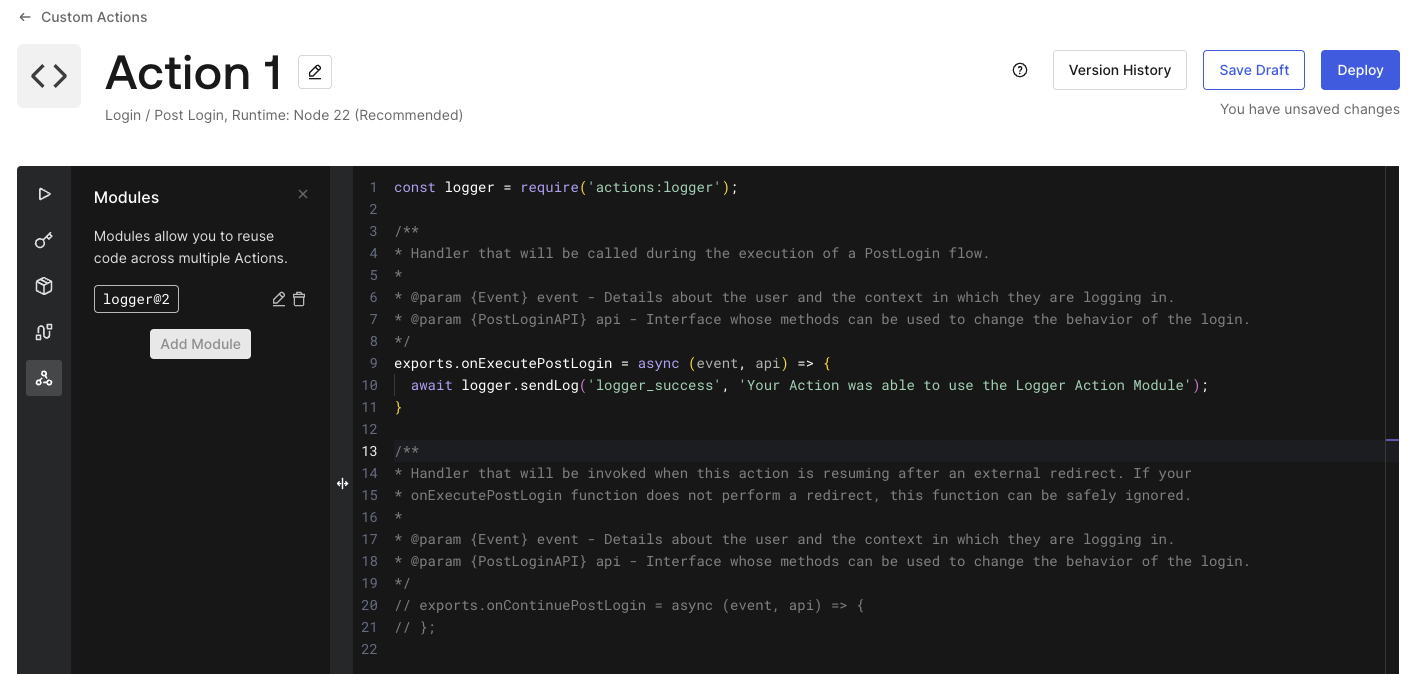
Each **Action** must explicitly reference the **Action Module Version**, preventing automatic upgrades that could introduce unexpected errors.
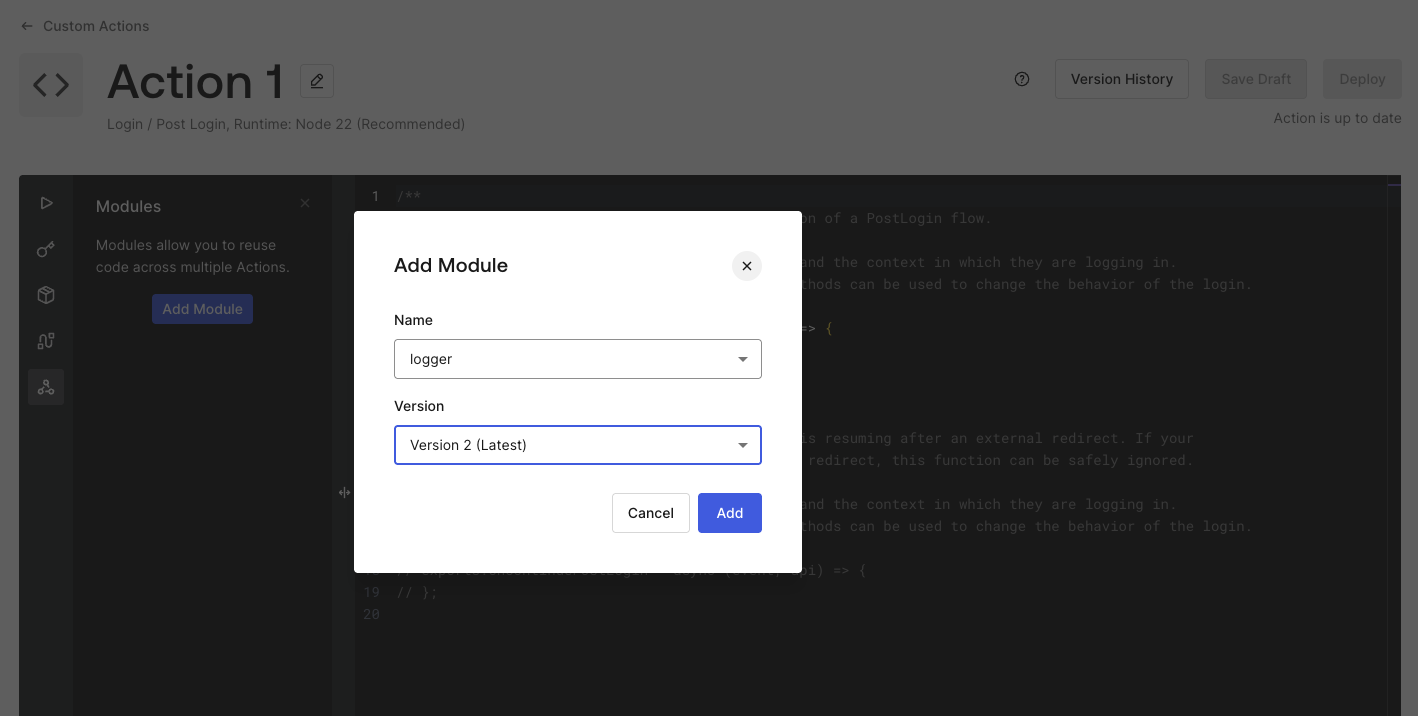
Let’s add the Action Module in an Action.
1. Navigate to [Auth0 Dashboard > Actions > Library](https://manage.auth0.com/#/actions/library) then select a specific **Action**.
2. Once at the Action Editor, select the **** icon from the left sidebar.
3. Select **Add Module**.
4. Select a Module **Name** and **Version**.
5. Select **Add**.
Call [Update an Action](https://auth0.com/docs/api/management/v2/actions/patch-action) with the module's `module_id` and `module_version_id` from the previous step:
```shell lines theme={null}
curl -L -X PATCH 'https://{yourDomain}/api/v2/actions/actions/{actionId}' \
-H 'Content-Type: application/json' \
-H 'Authorization: Bearer {yourMgmtApiAccessToken}' \
-d '{
"modules": [
{
"module_id": "{moduleId}",
"module_version_id": "{moduleVersionId}"
}
]
}'
```
[`auth0 actions update`](https://auth0.github.io/auth0-cli/auth0_actions_update.html) has no flag for Action Modules, so call [Update an Action](https://auth0.com/docs/api/management/v2/actions/patch-action) directly with `auth0 api`, using the module's `module_id` and `module_version_id` from the previous step:
```shell lines theme={null}
auth0 api patch actions/actions/{actionId} --data '{
"modules": [
{
"module_id": "{moduleId}",
"module_version_id": "{moduleVersionId}"
}
]
}'
```
Add a `modules` block to the `auth0_action` resource, referencing the module and its published version. Keep the `code` attribute pointing at the Action's own code file:
```terraform lines highlight={3,5-8} theme={null}
resource "auth0_action" "my_action" {
name = "my-action"
code = file("${path.module}/actions/my-action/code.js")
modules {
module_id = auth0_action_module.logger.id
module_version_id = auth0_action_module.logger.version_id
}
supported_triggers {
id = "post-login"
version = "v3"
}
}
```
Add a `modules` array to the Action's configuration, referencing the module by name and version number.
Add the `modules` array to the Action's entry in `tenant.yaml`:
```yaml lines highlight={7-9} theme={null}
actions:
- name: my-action
code: ./actions/my-action/code.js
supported_triggers:
- id: post-login
version: v3
modules:
- module_name: logger
module_version_number: 1
```
Add the `modules` array to the Action's configuration file (for example, `actions/my-action.json`):
```json lines highlight={2-5} theme={null}
{
"modules": [
{ "module_name": "logger", "module_version_number": 1 }
],
"name": "my-action",
"code": "./actions/my-action/code.js",
"supported_triggers": [
{ "id": "post-login", "version": "v3" }
]
}
```
The Deploy CLI resolves `module_name` and `module_version_number` to the module's real `module_id` and `module_version_id` at deploy time.
Now, let’s use the Action Module in the Action.
1. Add the **require** statement.
```javascript lines theme={null}
const logger = require('actions:logger');
```
The **require** statement references the Action Module with the format **actions:\[module-name]**.
2. Add the call to `logger.sendLog` in the **Action function**, where you want to send logs.
```javascript lines theme={null}
await logger.sendLog('logger_success', 'Your Action was able to use the Logger Action Module');
```
3. Select **Deploy** the Action.
1. Call [Update an Action](https://auth0.com/docs/api/management/v2/actions/patch-action) to add the `require` statement and the call to `logger.sendLog` to the Action's `code`:
```shell lines theme={null}
curl -L -X PATCH 'https://{yourDomain}/api/v2/actions/actions/{actionId}' \
-H 'Content-Type: application/json' \
-H 'Authorization: Bearer {yourMgmtApiAccessToken}' \
-d @code-update.json
```
Where `code-update.json` contains:
```json code-update.json lines theme={null}
{
"code": "const logger = require('actions:logger');\n\nexports.onExecutePostLogin = async (event, api) => {\n await logger.sendLog('logger_success', 'Your Action was able to use the Logger Action Module');\n};"
}
```
2. Call [Deploy an Action](https://auth0.com/docs/api/management/v2/actions/post-deploy-action):
```shell lines theme={null}
curl -L -X POST 'https://{yourDomain}/api/v2/actions/actions/{actionId}/deploy' \
-H 'Authorization: Bearer {yourMgmtApiAccessToken}'
```
1. Update the Action's code file at `actions/my-action/code.js` with the `require` statement and the call to `logger.sendLog`:
```javascript lines theme={null}
const logger = require('actions:logger');
exports.onExecutePostLogin = async (event, api) => {
await logger.sendLog('logger_success', 'Your Action was able to use the Logger Action Module');
};
```
2. Update the Action with [`auth0 actions update`](https://auth0.github.io/auth0-cli/auth0_actions_update.html) and deploy it with [`auth0 actions deploy`](https://auth0.github.io/auth0-cli/auth0_actions_deploy.html):
```shell lines theme={null}
auth0 actions update {actionId} --code "$(cat actions/my-action/code.js)"
auth0 actions deploy {actionId}
```
1. Update the Action's code file at `actions/my-action/code.js` with the `require` statement and the call to `logger.sendLog`:
```javascript lines theme={null}
const logger = require('actions:logger');
exports.onExecutePostLogin = async (event, api) => {
await logger.sendLog('logger_success', 'Your Action was able to use the Logger Action Module');
};
```
2. Set `deploy` to `true` on the `auth0_action` resource, then run `terraform apply`:
```terraform lines highlight={3} theme={null}
resource "auth0_action" "my_action" {
name = "my-action"
deploy = true
code = file("${path.module}/actions/my-action/code.js")
modules {
module_id = auth0_action_module.logger.id
module_version_id = auth0_action_module.logger.version_id
}
supported_triggers {
id = "post-login"
version = "v3"
}
}
```
Setting `deploy = true` immediately creates a new, deployed version of the Action.
1. Add the `require` statement and the call to `logger.sendLog` to `actions/my-action/code.js`:
```javascript lines theme={null}
const logger = require('actions:logger');
exports.onExecutePostLogin = async (event, api) => {
await logger.sendLog('logger_success', 'Your Action was able to use the Logger Action Module');
};
```
2. Redeploy the configuration:
```shell lines theme={null}
a0deploy import -c=config.json --input_file=. --experimental_ea
```
Remember to bind the Action to a Trigger.
**Checkpoint**
You should now have a fully functional **Action Module** being used by an **Action**.
***
## Advanced Usage
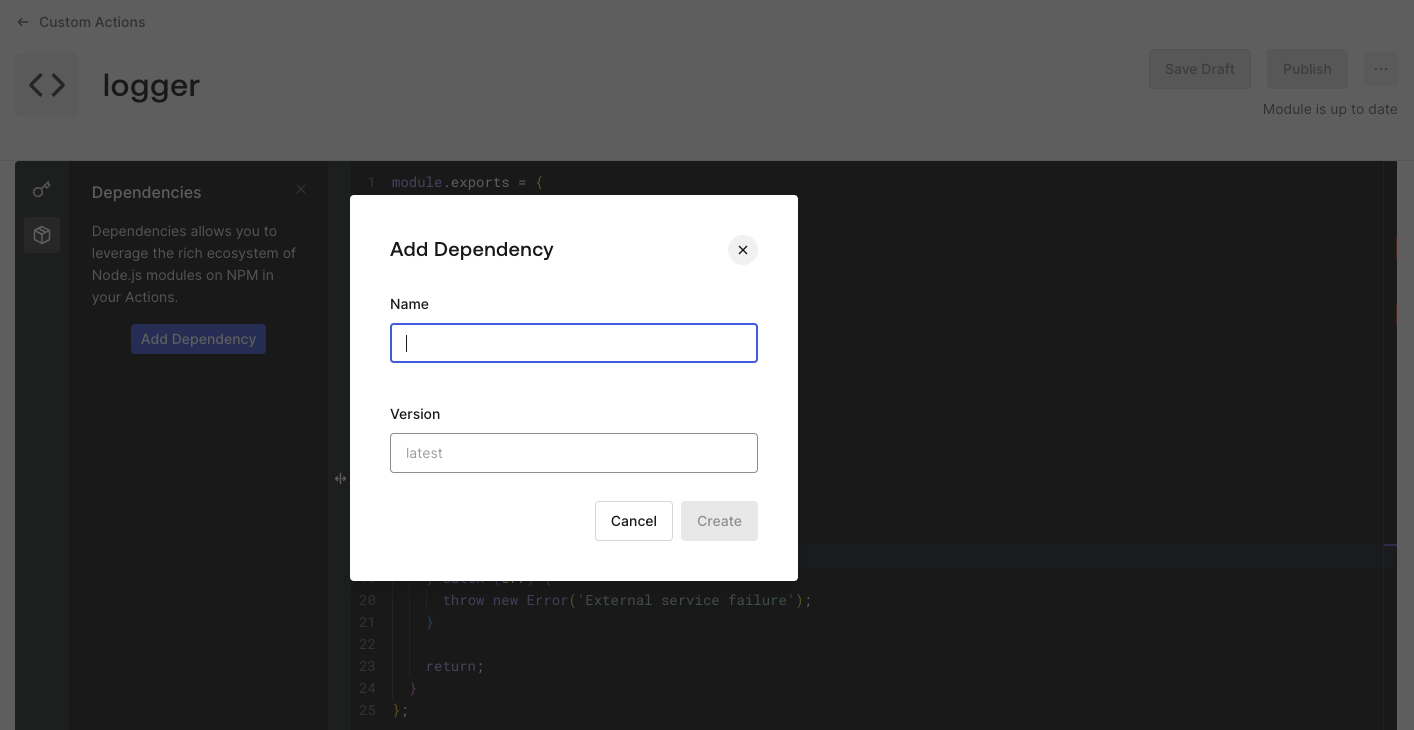
Each **Action Module** can add/use **[NPM Dependencies](https://www.npmjs.com/)**.
1. Select the **** icon from the code editor's left sidebar.
2. Select **Add Dependency**.
3. Enter the **Name** of the **NPM package**.
4. Enter the **Version** of the **NPM package**.
5. Select **Create**.
Auth0 adds the Dependency to the Action Module Dependency list.
Call [Update an Actions Module](https://auth0.com/docs/api/management/v2/actions/patch-action-module) with a `dependencies` array:
```shell lines theme={null}
curl -L -X PATCH 'https://{yourDomain}/api/v2/actions/modules/{moduleId}' \
-H 'Content-Type: application/json' \
-H 'Authorization: Bearer {yourMgmtApiAccessToken}' \
-d '{
"dependencies": [
{ "name": "lodash", "version": "4.17.21" }
]
}'
```
As with `secrets`, each `PATCH` call replaces the entire `dependencies` array, so include every dependency the module needs.
Call [Update an Actions Module](https://auth0.com/docs/api/management/v2/actions/patch-action-module) with `auth0 api`, using a `dependencies` array:
```shell lines theme={null}
auth0 api patch actions/modules/{moduleId} --data '{
"dependencies": [
{ "name": "lodash", "version": "4.17.21" }
]
}'
```
As with `secrets`, each call replaces the entire `dependencies` array, so include every dependency the module needs.
Add a `dependencies` block to the `auth0_action_module` resource, then run `terraform apply`:
```terraform lines highlight={4-7} theme={null}
resource "auth0_action_module" "logger" {
name = "logger"
code = file("${path.module}/action-modules/logger/code.js")
dependencies {
name = "lodash"
version = "4.17.21"
}
}
```
Add a `dependencies` array to the module's configuration.
Add the `dependencies` array to the module's entry in `tenant.yaml`:
```yaml lines highlight={3-5} theme={null}
actionModules:
- name: logger
dependencies:
- name: lodash
version: 4.17.21
code: ./action-modules/logger/code.js
```
Add the `dependencies` array to `action-modules/logger.json`:
```json lines highlight={2-4} theme={null}
{
"dependencies": [
{ "name": "lodash", "version": "4.17.21" }
],
"name": "logger",
"code": "./action-modules/logger/code.js"
}
```
Use the listed **Dependencies** at the Action Module by requiring them through `require('[package-name]')`.
When you save this Action, Auth0 resolves the latest version of your dependency and replaces it with a specific version number to keep future updates to the package from breaking your Action.
You can provide a specific version instead of latest.
 Auth0 adds the Secret to the Action Module Secret list.
 Auth0 displays the list of Action Module Versions including the draft.
 Auth0 adds the Dependency to the Action Module Dependency list.